MetaTrader 5, often called MT5, is one of the most widely used trading platforms in the world. It is powerful, flexible, and packed with tools, but when you first open it, it can feel busy.
That is where hotkeys and simple workflow habits can help.
Hotkeys are keyboard shortcuts that let you move around the platform faster, open key windows, adjust charts, switch views, and manage your workspace without constantly searching through menus. MetaTrader 5 also allows users to assign custom hotkeys to items in the Navigator window, such as indicators, scripts, and Expert Advisors.
This guide keeps things simple. Instead of giving you a long technical list, we’ll show you the MT5 shortcuts and features that are actually useful when you are learning the platform.
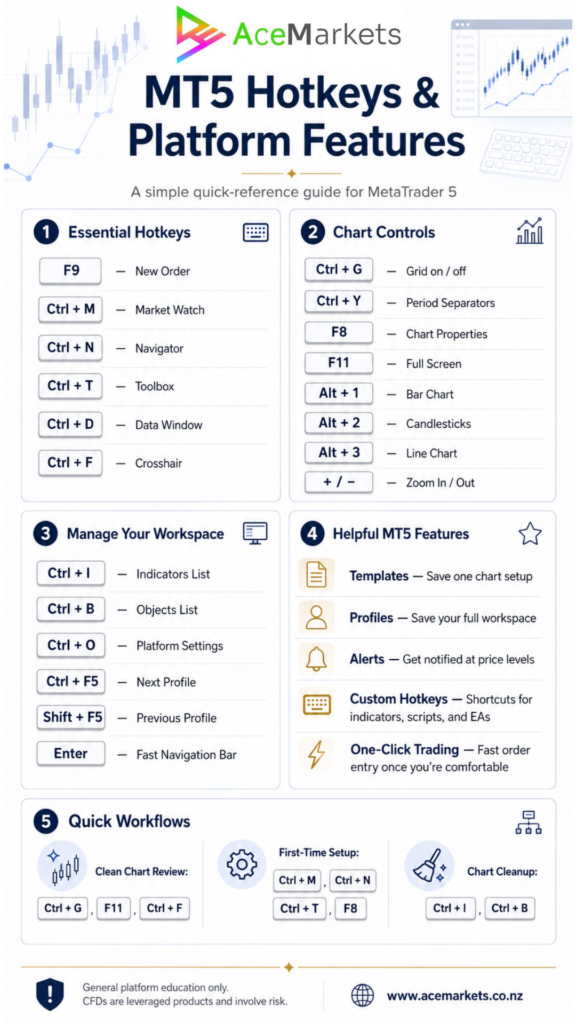
Why MT5 Hotkeys Matter
MT5 is a platform where you may be looking at multiple charts, different markets, timeframes, order windows, indicators, and account tabs.
Hotkeys help you:
- move around the platform faster
- keep charts cleaner
- open important windows quickly
- review price movement more easily
- build a more organised trading workspace
The goal is not to rush. The goal is to make the platform easier to understand and easier to use.
The MT5 Hotkeys Worth Learning First
Here are the shortcuts most users should learn before trying to memorise anything else.
| Hotkey | What It Does | Why It’s Useful |
|---|---|---|
| F9 | Opens the New Order window | Quickly brings up the trade ticket |
| Ctrl + M | Opens / closes Market Watch | Shows available instruments |
| Ctrl + N | Opens / closes Navigator | Access accounts, indicators, scripts, and EAs |
| Ctrl + T | Opens / closes Toolbox | View trade, history, alerts, mailbox, journal |
| Ctrl + D | Opens / closes Data Window | Shows detailed price and indicator values |
| Ctrl + I | Opens Indicators List | Manage indicators on the active chart |
| Ctrl + B | Opens Objects List | Manage trendlines, rectangles, Fibonacci tools, and other chart objects |
| Ctrl + F | Enables Crosshair | Measure or inspect chart movement more precisely |
| Ctrl + G | Shows / hides chart grid | Cleans up the chart view |
| Ctrl + Y | Shows / hides period separators | Helps separate trading days or periods visually |
| F8 | Opens Chart Properties | Adjust chart colours and display settings |
| F11 | Full-screen mode | Gives more chart space for analysis |
| Alt + 1 | Bar chart | Switch chart display |
| Alt + 2 | Candlestick chart | Switch chart display |
| Alt + 3 | Line chart | Switch chart display |
| + / – | Zoom in / zoom out | Review chart structure more clearly |
These shortcuts are built into the platform. For example, MetaTrader’s official help lists F9 for the New Order window, Ctrl+M for Market Watch, Ctrl+N for Navigator, Ctrl+T for Toolbox, F8 for chart settings, F11 for full screen, and Alt+1 / Alt+2 / Alt+3 for switching chart type.
1. Use F9 to Open the Order Window
The F9 key opens the New Order window.
This is one of the most important shortcuts in MT5 because it takes you directly to the order ticket, where you can review:
- symbol
- volume
- order type
- Stop Loss
- Take Profit
- execution details
MetaTrader’s official documentation confirms that pressing F9 opens the order dialog, and that trade volume affects both potential profit or loss and the margin reserved on the account.
A good habit is to use F9 as a way to review the trade ticket carefully, not as a reason to act quickly.
2. Use Ctrl + M to Control Market Watch
Ctrl + M opens and closes the Market Watch window.
Market Watch is where you see the available instruments, such as FX pairs, indices, commodities, or other products available through your broker.
Use it when you want to:
- find a symbol
- open a chart
- view Bid / Ask prices
- access symbol details
- open a New Order window from a market
If your screen feels cluttered, Ctrl + M is an easy way to hide Market Watch while you are focusing on a chart.
3. Use Ctrl + T to Open the Toolbox
Ctrl + T opens and closes the Toolbox.
The Toolbox is one of the most useful areas in MT5. It gives access to sections such as:
- Trade
- Exposure
- History
- Alerts
- Mailbox
- Journal
For day-to-day platform use, the Toolbox is where users often check open positions, account activity, alerts, and system messages.
If you only remember a few shortcuts, make Ctrl + T one of them.
4. Use Ctrl + F for the Crosshair
Ctrl + F turns on the Crosshair.
The crosshair is useful when you want to inspect a chart more carefully. It helps you line up price, time, candles, and chart levels without guessing.
You can use the crosshair to:
- inspect a candle
- compare one area of the chart with another
- measure price movement visually
- check where a level sits on the chart
MetaTrader’s documentation lists Ctrl + F as the shortcut to enable the Crosshair.
5. Use Ctrl + D for the Data Window
Ctrl + D opens the Data Window.
This is one of the most underrated MT5 features.
The Data Window shows detailed information for the selected point on the chart, including price data and indicator values. MetaTrader describes the Data Window as a feature that provides accurate price information, along with values for indicators and Expert Advisors at the selected chart point.
This is useful when you want more detail than what you can easily see by eye.
6. Use Ctrl + I to Manage Indicators
Ctrl + I opens the Indicators List for the active chart.
This helps when your chart has multiple indicators and you want to:
- edit an indicator
- remove an indicator
- check which indicators are currently attached
- adjust settings without searching through the chart manually
This is especially useful once you start saving templates or working with multiple chart setups.
7. Use Ctrl + B to Manage Chart Objects
Ctrl + B opens the Objects List.
Chart objects include things like:
- trendlines
- horizontal lines
- rectangles
- Fibonacci tools
- text labels
- arrows
If you draw on charts often, Ctrl + B is extremely useful because it lets you clean up or edit objects without trying to click tiny lines on the chart.
This is one of the simplest ways to keep your MT5 workspace organised.
8. Use Ctrl + G and Ctrl + Y to Clean the Chart
Two simple shortcuts can make a chart much easier to look at:
Ctrl + G
Shows or hides the chart grid.
Ctrl + Y
Shows or hides period separators.
A cleaner chart can make it easier to focus on price movement. Period separators can also help you visually separate different sessions, days, or time periods.
9. Use F11 for Full-Screen Chart View
F11 switches MT5 into full-screen mode.
This hides most of the surrounding platform windows and gives you more chart space.
Use this when you want to focus on one chart without distractions.
MetaTrader’s help explains that F11 enables or disables full-screen mode and hides all platform windows except the chart.
10. Use Alt + 1, Alt + 2, and Alt + 3 to Switch Chart Type
MT5 allows you to quickly switch how a chart is displayed:
- Alt + 1 = Bar chart
- Alt + 2 = Candlestick chart
- Alt + 3 = Line chart
This is useful because different chart styles show information differently.
Candlesticks are commonly used because they show open, high, low, and close visually. Line charts can be useful when you want a simpler view of price movement.
11. Use + and – to Zoom In and Out
The + and – keys let you zoom in and out of a chart.
Use zoom in when you want to inspect recent candles more closely.
Use zoom out when you want to see more historical movement and understand the broader context.
Simple, but very useful.
12. Use Home, End, Page Up, and Page Down to Move Around Charts
MT5 lets you move through charts quickly using keyboard keys:
- Home moves to the start point of the chart
- End moves to the end point
- Page Up scrolls left quickly
- Page Down scrolls right quickly
- Left / Right arrows move through the chart more gradually
These are useful when reviewing older price movement or moving back to the current chart area.
Useful MT5 Workflow Setups
Hotkeys are most powerful when you use them as part of a simple workflow.
Here are a few practical examples.
Workflow 1: Clean Chart Review
Use this when you want to focus on one market.
- Press Ctrl + M to hide Market Watch.
- Press Ctrl + T to hide Toolbox.
- Press Ctrl + G to remove the grid.
- Press F11 for full screen.
- Use + / – to adjust zoom.
- Use Ctrl + F for Crosshair.
This gives you a clean chart for review.
Workflow 2: Platform Setup Check
Use this when setting up MT5 for the first time.
- Press Ctrl + M to open Market Watch.
- Press Ctrl + N to open Navigator.
- Press Ctrl + T to open Toolbox.
- Open your selected chart.
- Press F8 to adjust chart colours and properties.
- Press Ctrl + I to check indicators on the chart.
This helps you understand where the main platform sections are.
Workflow 3: Managing a Chart With Indicators and Drawings
Use this when your chart becomes cluttered.
- Press Ctrl + I to review indicators.
- Press Ctrl + B to review chart objects.
- Remove anything you no longer need.
- Press Ctrl + G to clean the grid.
- Save the setup as a chart template.
This keeps your workspace more structured.
Custom Hotkeys in MT5
One of the more interesting MT5 features is the ability to assign custom hotkeys to certain items in the Navigator window.
For example, a user may assign a shortcut to:
- a custom indicator
- a script
- an Expert Advisor
MetaTrader’s official help explains that keyboard shortcuts can be assigned to Navigator window elements, except Accounts. It also notes that assigned hotkeys can take priority over predefined shortcuts.
A simple way to use this:
- Open Navigator with Ctrl + N.
- Find the indicator, script, or Expert Advisor.
- Right-click it.
- Select Set Hotkey.
- Choose a key combination.
This can be useful if you regularly use the same tool and want quicker access to it.
Templates: Save Your Favourite Chart Setup
A template saves the settings of one chart.
That can include:
- chart type
- colours
- scale
- indicators
- indicator settings
- Expert Advisors
- graphical objects
- period separators
MetaTrader’s official documentation explains that templates store chart window parameters and can be applied to other instruments and timeframes.
A practical example:
You create a clean chart with:
- candlesticks
- preferred colours
- one or two indicators
- no grid
- period separators turned on
Then you save it as a template.
After that, you can apply the same layout to another market without rebuilding it from scratch.
Profiles: Save Your Whole Workspace
A profile is bigger than a template.
A template saves one chart setup.
A profile saves a group of charts and their layout.
MetaTrader’s official guide explains that profiles can store open charts, their location and size, and the templates applied to those charts.
For example, you could create separate profiles for:
- FX majors
- gold and commodities
- indices
- weekly review
- clean single-chart view
MT5 also allows users to switch between profiles using hotkeys:
- Ctrl + F5 = next profile
- Shift + F5 = previous profile
Profiles are useful when you want to move between different workspaces without constantly reopening and arranging charts.
Fast Navigation Bar: A Feature Many Users Miss
The Fast Navigation Bar is a simple MT5 feature that helps you jump around charts quickly.
MetaTrader explains that the Fast Navigation Bar lets users move along the time axis and change the symbol, timeframe, or date by typing into the bar.
You can open it by pressing Enter while a chart is active.
You can use it to quickly move to:
- a symbol
- a timeframe
- a date
- a point in chart history
This is useful when reviewing previous market movement or switching chart views quickly.
Alerts: Let MT5 Notify You
MT5 alerts can help you monitor price levels without staring at the screen.
MetaTrader’s official platform information says alerts can notify users by sound, email, or mobile push notification when specified market conditions occur, such as Bid or Ask prices crossing set values.
A simple example:
You are watching gold but only want to be notified if price reaches a certain level.
Instead of watching the chart constantly, you can create an alert.
To access alerts:
- Press Ctrl + T to open Toolbox.
- Go to the Alerts tab.
- Right-click and create a new alert.
- Set the symbol, condition, value, and notification type.
Alerts are a practical way to keep the platform working for you.
One-Click Trading and Chart Trading
MT5 includes chart-based trading and One Click Trading features.
MetaTrader explains that pending orders can be placed from the chart context menu and that, when One Click Trading is enabled, orders can be placed at a specified price instantly without displaying the usual trading dialog.
This is a powerful feature, so it is best used only after you understand:
- order size
- order type
- Stop Loss
- Take Profit
- margin
- how orders are executed
For new users, the standard order window is often the better place to learn because it shows the key order details before submission.
A Simple MT5 Setup for New Users
Here is a clean starting setup for someone learning MT5:
Main windows open
- Market Watch: Ctrl + M
- Navigator: Ctrl + N
- Toolbox: Ctrl + T
Chart settings
- Candlestick chart: Alt + 2
- Grid off: Ctrl + G
- Period separators on: Ctrl + Y
- Preferred chart colours: F8
Review tools
- Crosshair: Ctrl + F
- Data Window: Ctrl + D
- Objects List: Ctrl + B
- Indicators List: Ctrl + I
Workspace
- Save preferred chart as a template
- Save multiple chart layouts as profiles
This gives you a clean, organised platform without overcomplicating things.
Quick Reference: Best MT5 Hotkeys to Print or Save
| Action | Shortcut |
|---|---|
| New Order | F9 |
| Market Watch | Ctrl + M |
| Navigator | Ctrl + N |
| Toolbox | Ctrl + T |
| Data Window | Ctrl + D |
| Indicators List | Ctrl + I |
| Objects List | Ctrl + B |
| Crosshair | Ctrl + F |
| Grid on/off | Ctrl + G |
| Period separators | Ctrl + Y |
| Chart properties | F8 |
| Full screen | F11 |
| Candlestick chart | Alt + 2 |
| Bar chart | Alt + 1 |
| Line chart | Alt + 3 |
| Zoom in | + |
| Zoom out | – |
| Next profile | Ctrl + F5 |
| Previous profile | Shift + F5 |
| Platform settings | Ctrl + O |
MT5 has a lot of features, but you do not need to learn everything at once.
Start with the shortcuts that help you:
- open the main platform windows
- clean up your charts
- review price movement
- manage indicators and chart objects
- understand the order window
- save your preferred workspace
Once you are comfortable with those basics, features like templates, profiles, alerts, and custom hotkeys can make the platform feel much easier to use.
At Ace Markets, we focus on helping users get set up properly, understand the platform clearly, and build confidence using MT5 step by step.
0 Comments